
Inspect FMSPC and Platform Type
Retrieve your FMSPC and platform type from an SGX or TDX machine using Docker or Rust tools.

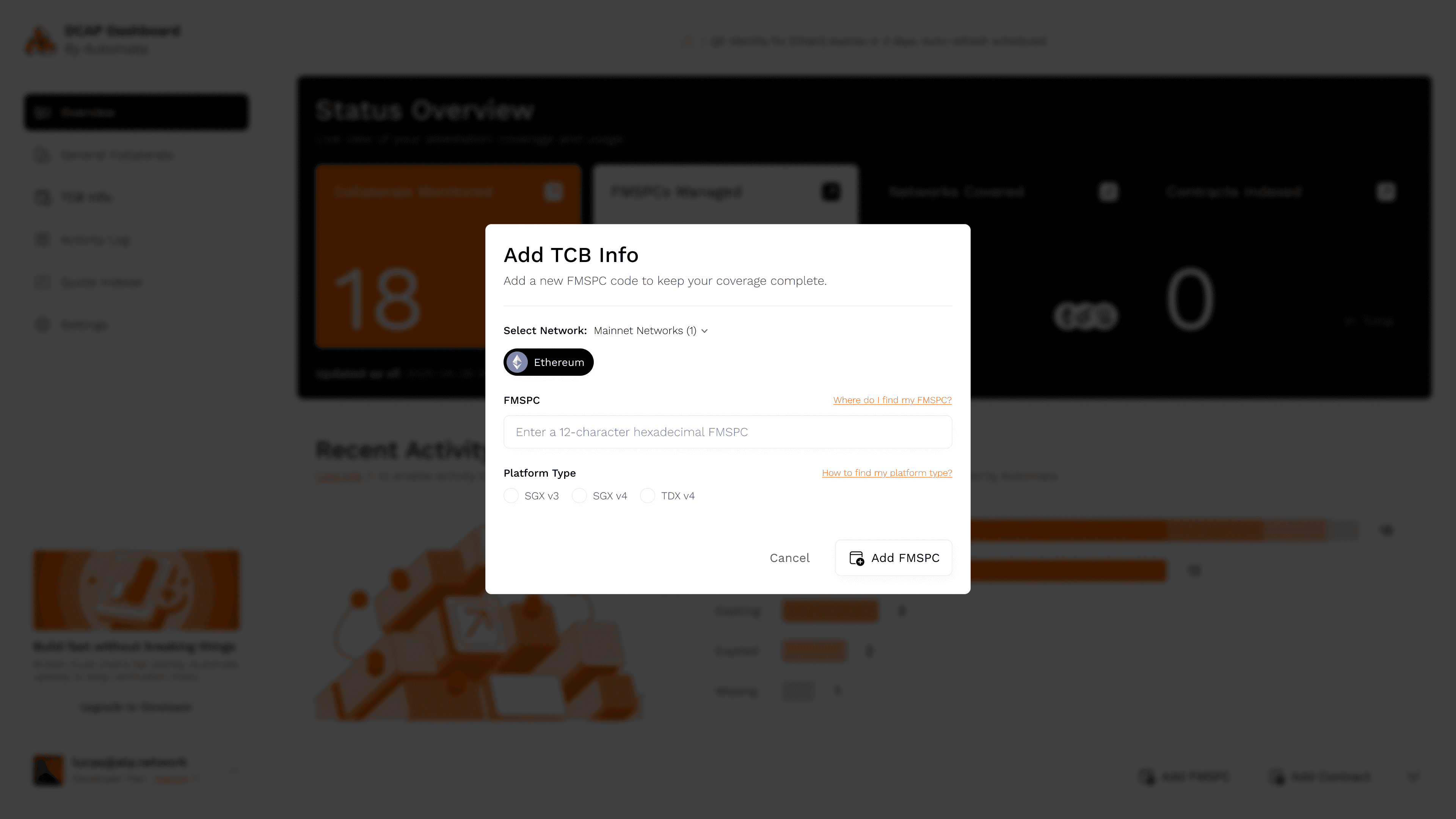
These values are used to fetch the correct TCB collateral for SGX and TDX platforms through the DCAP Dashboard:
- FMSPC: Family-Model-Stepping-Platform-Custom SKU identifier. This 12-character hex code is used to fetch the correct TCB (Trusted Computing Base) info for your platform.
- Platform Type: Indicates which hardware version you're using. Common values include SGX v3, SGX v4, or TDX v4.
How to Use
Supported Environments
Your environment must support Intel SGX or TDX. The following configurations are supported:
- GCP TDX configurations: c3-standard-* family (Check TDX VM instances)
- Azure instance types: DCesv5, ECesv5 series with Ubuntu 22.04/24.04 Confidential VM
- Self-hosted or other CSPs:
-
Ensure VM is running under the KVM hypervisor
-
Linux kernel version 6.7 or later
-
Expose ConfigFS at
/sys/kernel/config/tsm/report. It must be possible to create a temporary directory under that path:sudo mkdir /sys/kernel/config/tsm/report/testing123
-
Prerequisites
- Either Docker installed,
- OR, Rust + system packages for native builds:
sudo apt install build-essential pkg-config libtss2-devInstall Rust and select the default toolchain as nightly:
curl --proto '=https' --tlsv1.2 -sSf https://sh.rustup.rs | sh
source "$HOME/.cargo/env"
Retrieve FMSPC using Docker
1. Clone the repo
git clone https://github.com/automata-network/tdx-attestation-sdk.git
cd tdx-attestation-sdk
2. Build the Docker image
This will install all dependencies and compile the available tools into a Docker image.
docker build -t tdx-attestation .3. Run the container
This runs the fmspc binary by default, which prints the 12-character FMSPC value for your current platform.
sudo docker run --privileged --rm --network host \
  --device=/dev/tpm0 --device=/dev/tpmrm0 \
  -v /sys/kernel/config:/sys/kernel/config \
  --group-add $(getent group tss | cut -d: -f3) \
  tdx-attestation:latest
Sample output:
FMSPC: 00906ea10000If needed, you can override the default entrypoint using --entrypoint <sample binary>
Inspect DCAP quote for platform type
You must provide a valid quote file. This command does not handle quote generation.
1: Build the inspect binary
cargo build --example inspect2. Run it with your quote file
sudo ./target/debug/examples/inspect --report path/to/your_quote.bin3. Review the output
This runs the inspect example, which parses the quote and prints:
FMSPC: 00906ea10000
Platform: TDX
Version: v4
Debug tools
These are additional binaries that may be useful for debugging or manual testing during development.
attestation: Generates and verifies a TDX report.
cargo build --example attestation
sudo ./target/debug/examples/attestationfmspc: Fetches the FMSPC in a TDX-enabled VM.
cargo build --example fmspc
sudo ./target/debug/examples/fmspcinspect: Parses a SGX/TDX DCAP quote file to print the platform type, version, and FMSPC.
cargo build --example inspect
sudo ./target/debug/examples/inspect --report tdx/examples/testdata/tdx_v4_quote.bin
sudo ./target/debug/examples/inspect --report tdx/examples/testdata/sgx_v3_quote.bin
Common errors
| Error | Explanation/fix |
|---|---|
No such device or address | ConfigFS may not be available. Confirm your VM supports TDX and has /sys/kernel/config/tsm/report |
Permission denied | Use sudo. Make sure you have access to /dev/tpm0 and are in the correct groups |
Group tss not found | Install tpm2-tss, or manually create the group |
For a complete walkthrough, follow along on our GitHub.