
Web Terminal
Learn how to navigate the features on XATA's Web Terminal.
The XATA Web Terminal connects to onchain orderbooks across multiple supported exchanges, giving users access to deep liquidity and full onchain transparency.
It is designed for flexibility, allowing users to customize the interface and display all options required for their trading strategy.
Display Preferences
By default, the Order Book and History tabs are combined with the Trade tab in a single view.
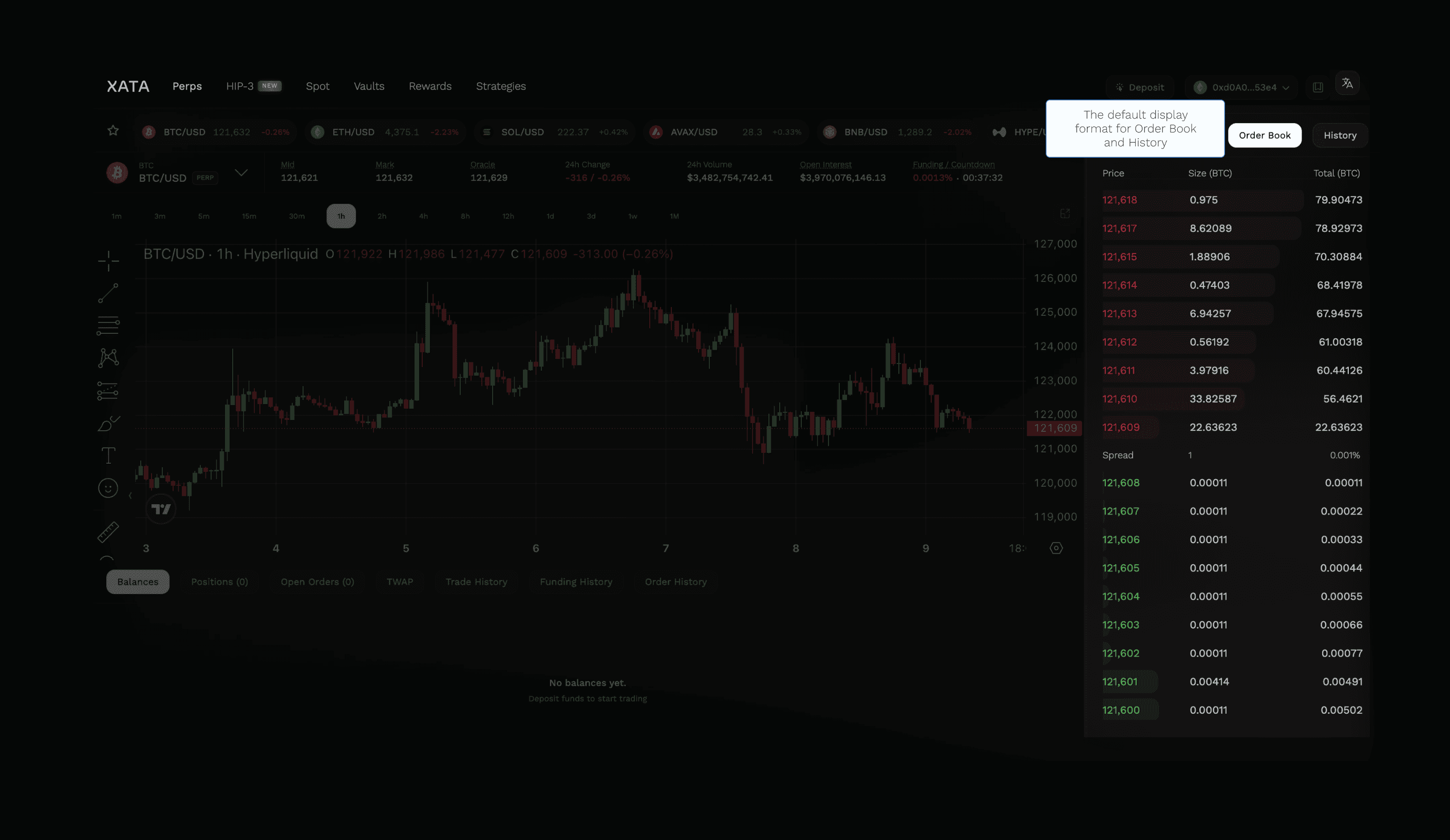
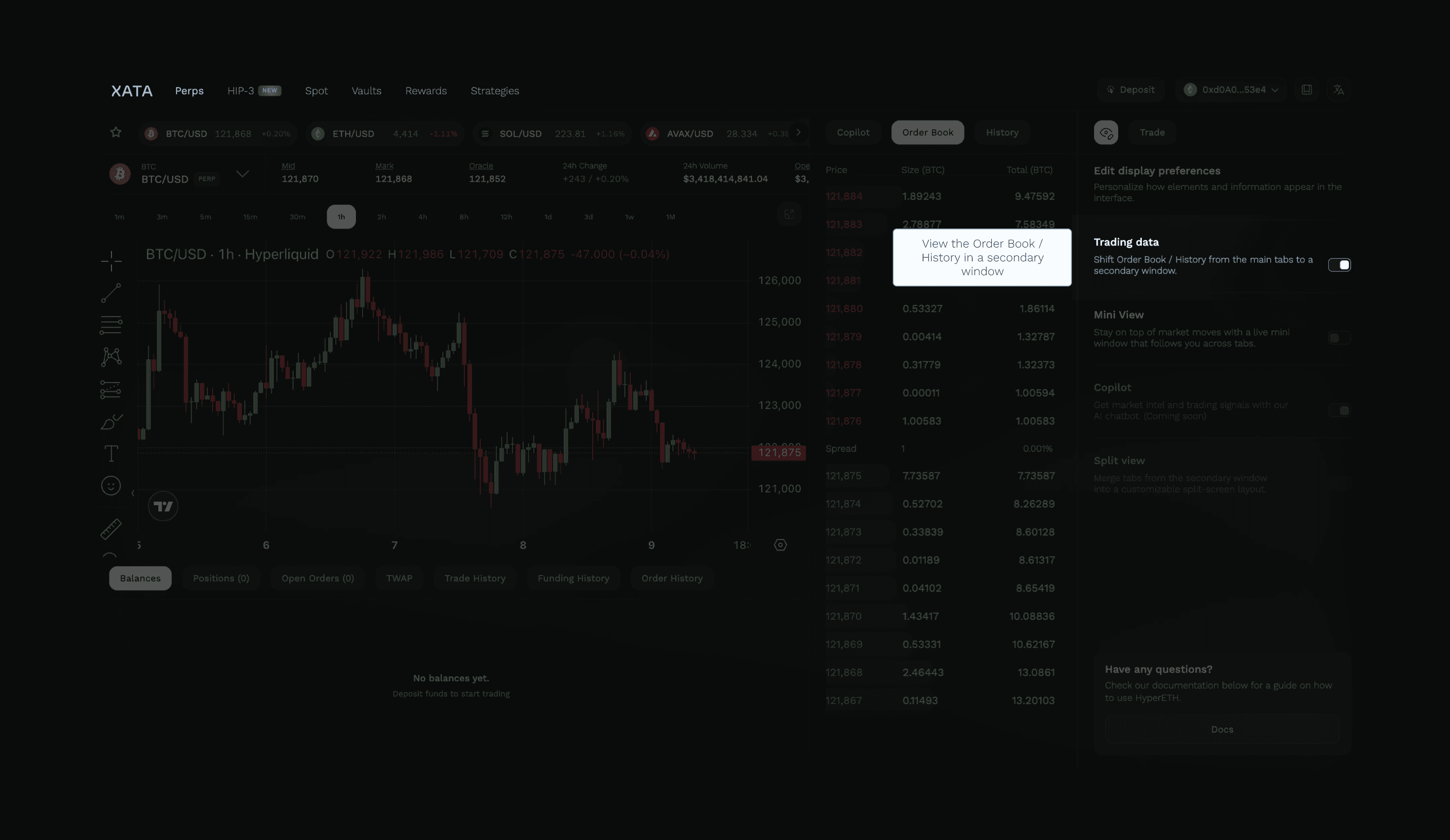
To switch the view to a secondary window, open the Trading data menu and toggle the option to move both the Order Book and History tabs to a secondary window.
Mini View
XATA's Mini View is a floating window that appears as a compact overlay on your screen.
Users can continue to stay updated with the latest market moves even while switching between tabs or using another application on the desktop.
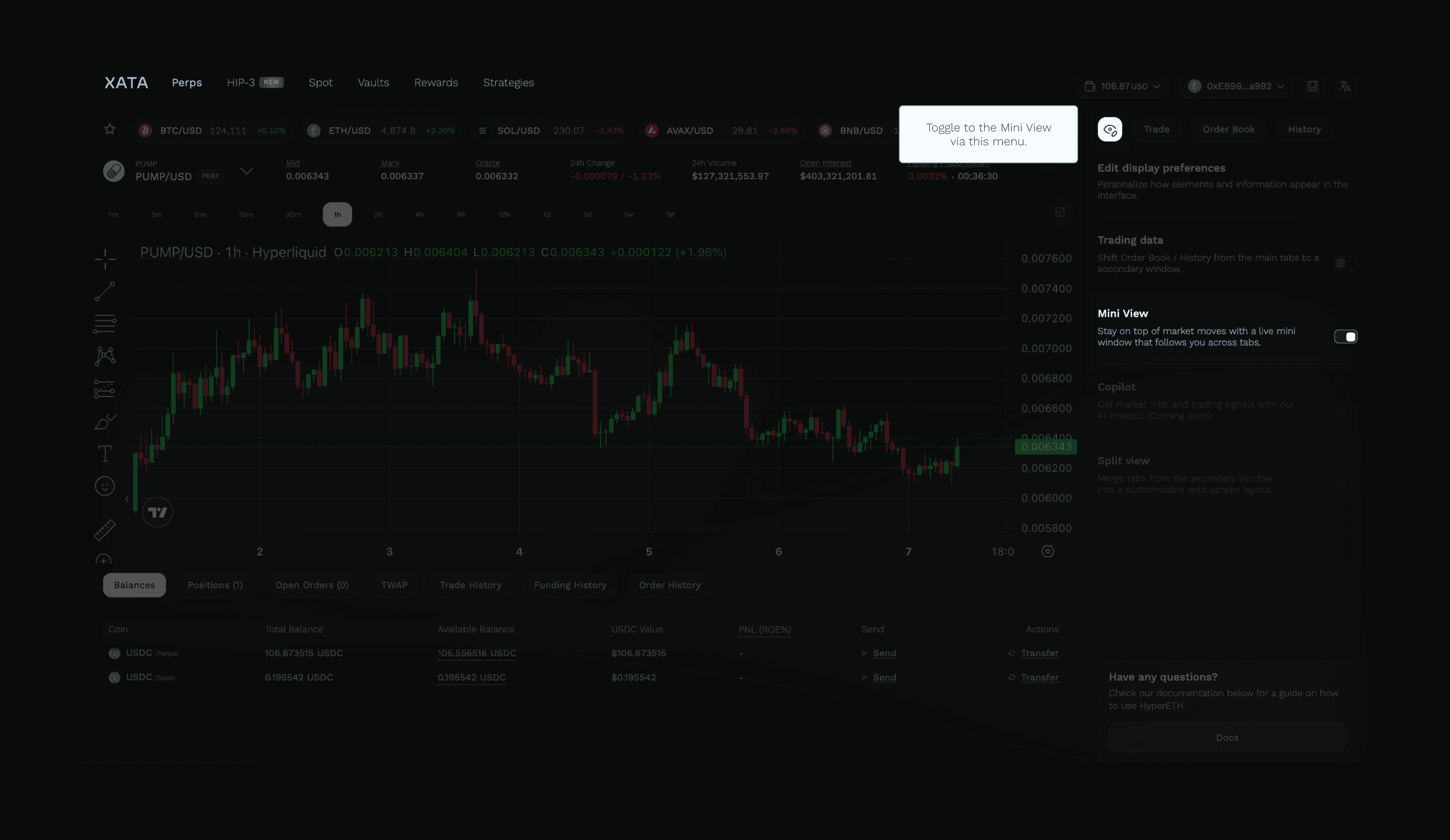
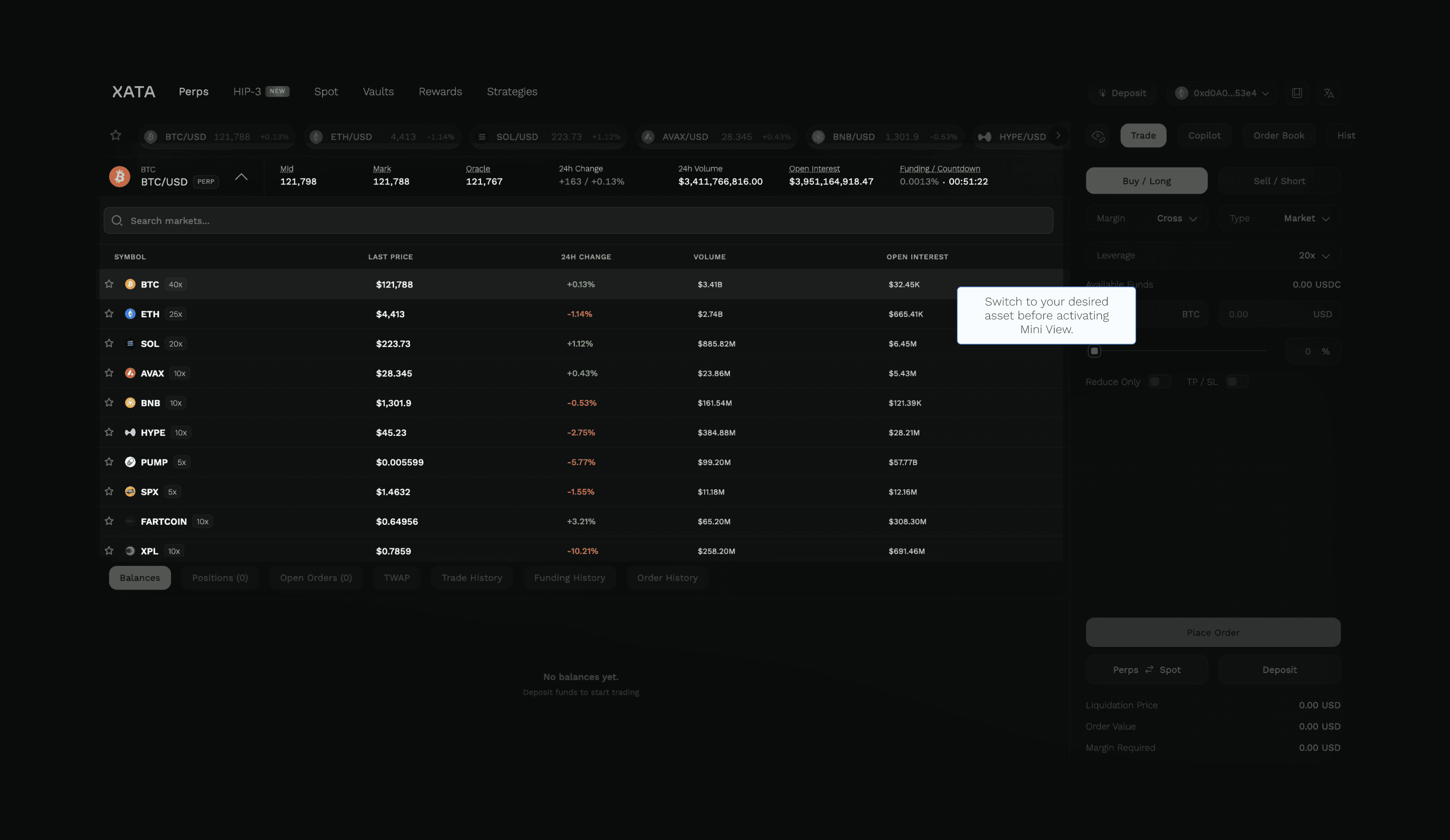
To activate Mini View, navigate to the Eye symbol on the screen and toggle the option.
After switching to another tab, a floating chart window appears at the bottom-right corner of the screen.
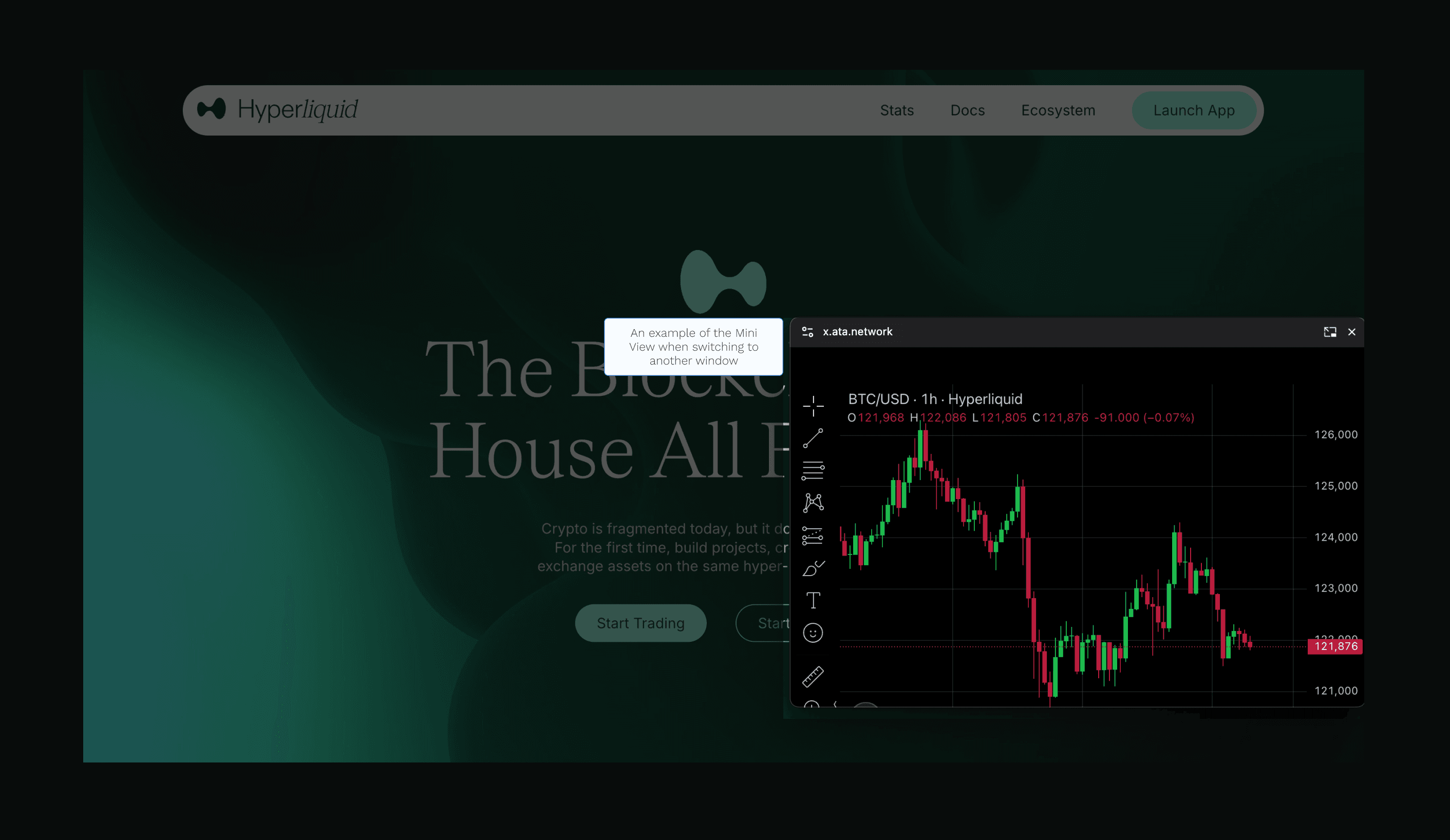
The chart will display the last asset selected in the Web Terminal before switching away.
To view a different asset under Mini View:
- Return to the Web Terminal
- Select the desired asset before switching to another window
Copilot
XATA includes an AI-powered trading assistant called Copilot, accessible from the sidebar of the Web Terminal.
Copilot offers two modes:
- Vibe Trading — Market-driven mode that analyzes trends and provides trade recommendations. Copilot can propose specific orders (entry, take profit, stop loss) directly from the chat interface, showing market condition, confidence level, and rationale.
- Deep Chat — Learning mode for asking questions about trading concepts, platform features, and strategies.
Use the chip suggestions in the chat interface to quickly ask about topics like leverage, stop loss, funding rates, order types, referrals, and more.
Copilot may make mistakes. Consider verifying data provided. This tool is intended to share insights and does not offer financial advice.
Ask AI
The Ask AI button on the trading chart triggers a token-specific analysis from Copilot, providing a recommended position based on current chart data and market conditions.